| Description
|
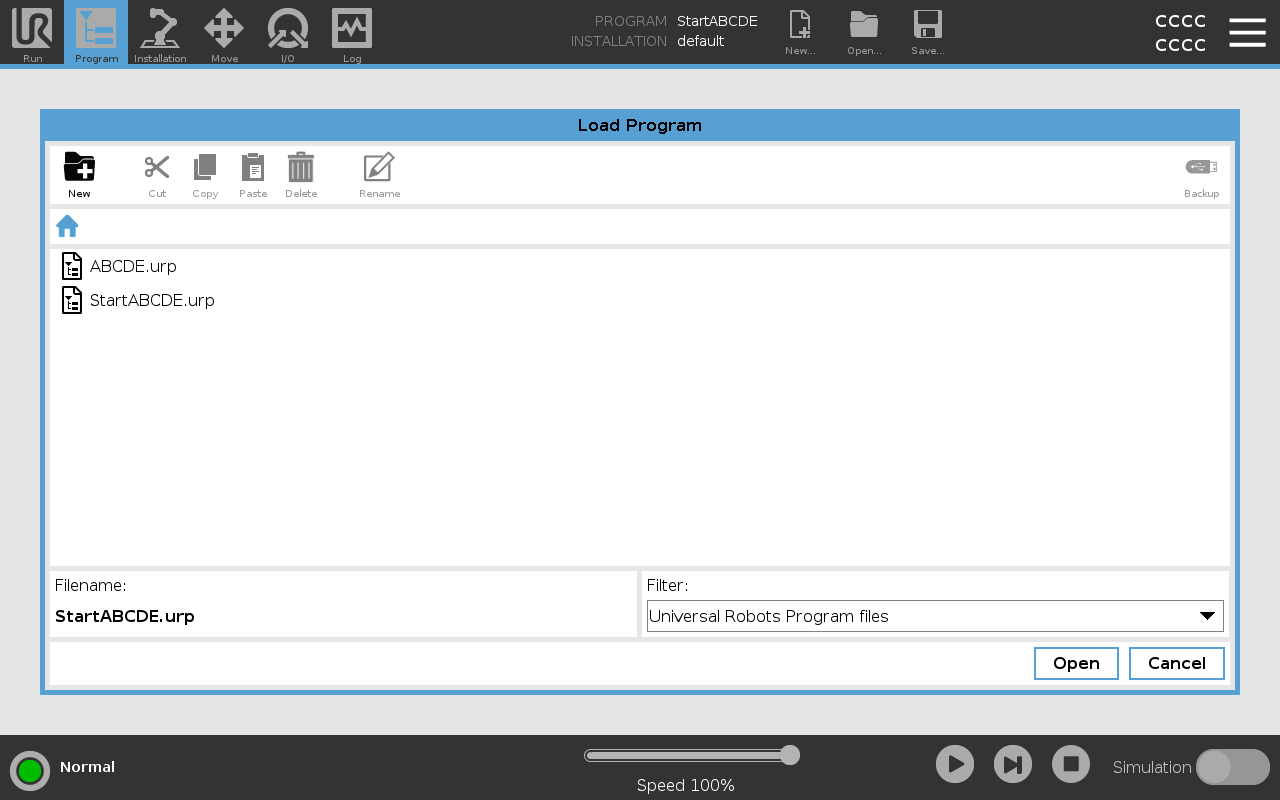
This image shows the load screen which consists of the following buttons:
-
Breadcrumb Path
The breadcrumb path shows a list of directories leading to the present location. By selecting a directory name in the breadcrumb, the location changes to that directory and displays it in the file selection area.
-
File Selection Area
Tap the name of a file to open it. Directories are selected by pressing their name for half a second.
-
File Filter
You can specify the file types shown. After selecting Backup Files, this area displays the 10 most recently saved program versions, where ’.old0’ is the newest and ’.old9’ is the oldest.
-
Filename
The selected file is shown here. When saving a file, use the text field to manually enter the file name.
-
Action buttons
The action bar consists of a series of buttons that enable you to manage files.
The ’Backup’ action to the right of the action bar supports backing up the currently selected files and directories to the location and to a USB. The ’Backup’ action is only enabled when an external media is attached to the USB port.
|